

Do you know How To Open IPYNB File? Getting an IPYNB file and not knowing what to do with it is the most common frustrations in data science. An IPYNB file is a Jupyter Notebook document that stores live code, markdown text and output results all in one place. Learning How to open IPYNB file takes under 2 minutes, once you know which method fits your situation.
What is an IPYNB File
An IPYNB file is a JSON document created by Project Jupyter that holds code cells, markdown text and execution results together. The .ipynb extension comes from the original name IPython Notebook, which Fernando Pérez introduced in 2011. These files are now the standard format for data science, machine learning research and academic coursework across Python, R and Julia workflows.
Unlike a plain Python script, an IPYNB file captures both the code and the results of running it. This makes it practical for sharing reproducible research and step by step tutorials with anyone following the analysis.
6 Ways - To Open an IPYNB File
There is no single correct method for opening an IPYNB file. The right choice depends on whether you want to view the content, edit the code or run the notebook from start to finish.
1. Open IPYNB File in Google Colab
Google Colab is the fastest way to open an IPYNB file without installing anything on your computer. Upload your notebook to Google Drive, right click on the file and select Open with then Google Colaboratory. The notebook loads instantly in your browser with a free Python runtime ready to go. Colab works on any device including Chromebooks, tablets and mobile phones.
2. Open IPYNB File in VS Code
VS Code is the most popular code editor for opening IPYNB files on a desktop. Install the Jupyter extension from the VS Code marketplace then open your .ipynb file from the file explorer. VS Code renders code cells, markdown and outputs cleanly without needing a separate Jupyter server running. It also supports cell markers for switching between notebook and script modes.
3. Open IPYNB File in JupyterLab
JupyterLab is the official browser- based environment built for working with IPYNB files. Install it by running pip install jupyterlab in your terminal then launch it with jupyter lab. A browser tab opens showing your local file system. Navigate to your .ipynb file, click it and the notebook opens with full cell execution support.
4. Open IPYNB File with Anaconda
Anaconda is the recommended way to open IPYNB files on Windows or macOS without touching the command line. Download Anaconda from anaconda.com, install it and launch Anaconda Navigator from your applications menu. Click the Launch button under Jupyter Notebook or JupyterLab. Your browser opens a file browser where you click your .ipynb file to start working.
5. Open IPYNB File with nbviewer
nbviewer.jupyter.org is an online viewer for IPYNB files hosted on GitHub or uploaded directly. Paste a public GitHub link or upload your file to render the notebook as a formatted web page. This works well when you need to read or share a notebook with someone who has no coding environment set up. All outputs, charts and markdown sections display exactly as they appear in Jupyter.
6. Convert IPYNB File to PDF Online
If you received an IPYNB file and simply want to read or share the content without running code, converting it to PDF is the fastest option. Our free IPYNB to PDF converter opens any Jupyter Notebook in your browser and produces a clean readable document in seconds. No Python, no Jupyter and no installation of any kind required.
Open IPYNB File Without Python
Yes you can open an IPYNB file without a local Python installation. Google Colab, VS Code with the Jupyter extension and online viewers all work without Python on your machine. The code inside the notebook requires Python to run but viewing the content does not. If your goal is reading or sharing the notebook rather than executing it, an online IPYNB file opener is the simplest option.
Opening IPYNB File on Windows Mac and Linux
The method you choose depends slightly on which operating system you are using.
- On Windows, right click your .ipynb file and choose Open With then select VS Code or JupyterLab. If neither is installed, upload the file to Google Colab in any browser without any local setup needed.
- On Mac, VS Code, JupyterLab and Anaconda Navigator all work smoothly. Google Colab in any browser is a reliable option when you want to avoid any local installation.
- On Linux, JupyterLab runs natively via pip and VS Code also has a full Linux version with Jupyter extension support. Google Colab works as a browser fallback without any local install.
- On Android or iPhone, Google Colab opens IPYNB files from a mobile browser after uploading your notebook to Google Drive first. The Ipynb Viewer app on Google Play is another dedicated mobile option for Android users.
Common Problems When Opening IPYNB Files
Most issues with opening IPYNB files fall into four common categories. Here is how to fix each one quickly.
- File opens as plain text or JSON. Your system does not have an application linked to the .ipynb extension. Right click the file, select Open With and choose VS Code or JupyterLab to render it properly.
- Notebook opens but outputs are blank. The file was saved before running all cells. Open it in JupyterLab or VS Code and run all cells from the top to regenerate the outputs.
- File is too large for Google Colab. Colab has upload and memory limits. For large notebooks over 100MB use a local JupyterLab or VS Code setup with enough RAM instead.
- Cells show import errors after opening. The notebook requires Python libraries not installed in your current environment. Check the import statements at the top and install any missing packages using pip.
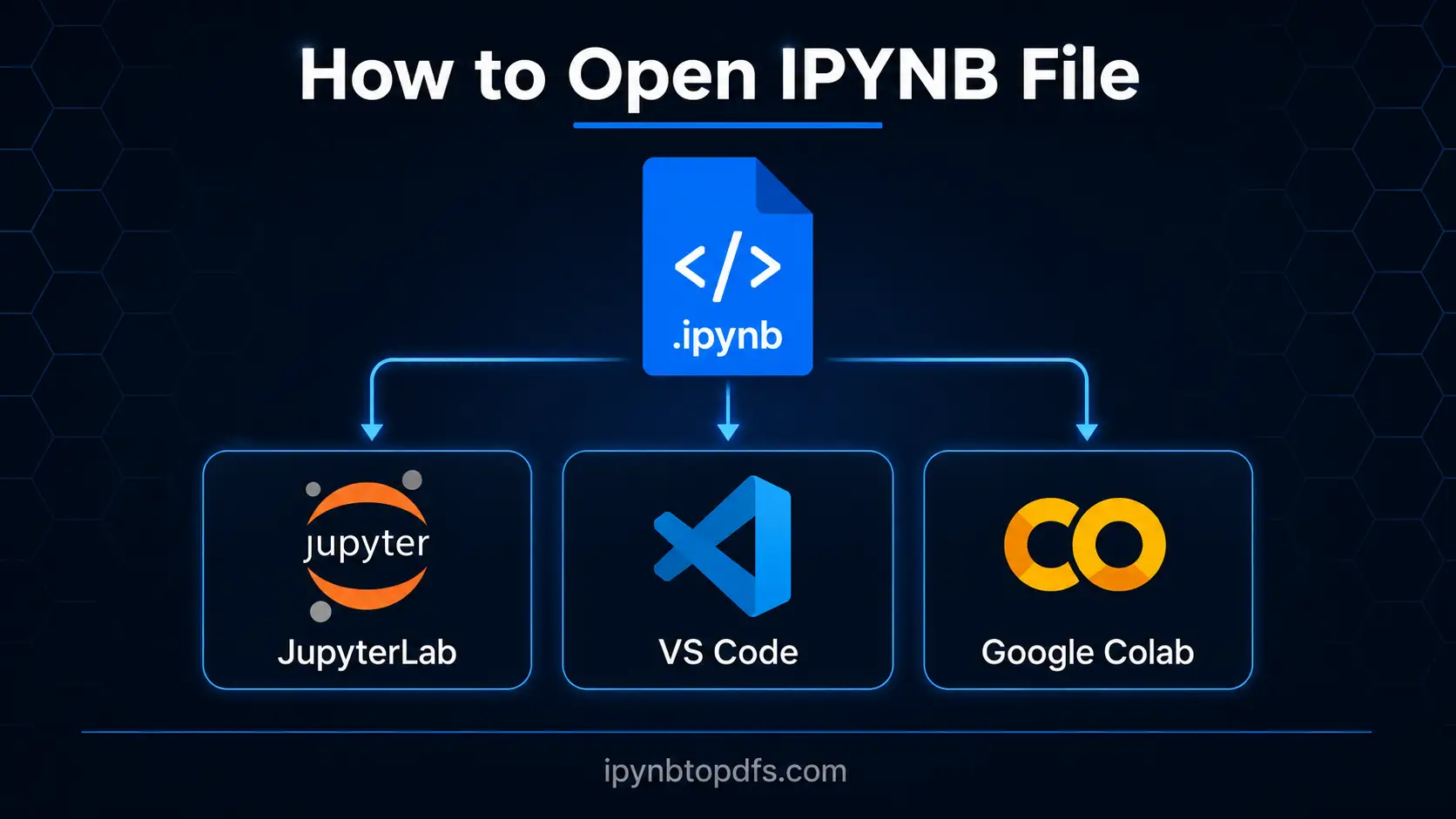
How to Open an IPYNB File in Seconds
To open an IPYNB file without any setup, go to Google Colab. Click File then Upload Notebook and select your .ipynb file from your device. The notebook loads immediately and is ready to read or run in your browser. This works on any operating system without installing Python, Jupyter or Anaconda on your machine.
Conclusion
Opening an IPYNB file becomes straightforward once you match the right tool to your goal. Use Google Colab for a browser solution with zero installation, VS Code for a complete developer environment or JupyterLab when you need the full notebook experience. For reading and sharing with non technical colleagues, converting it to PDF is the most reliable path. Our free IPYNB to PDF converter turns any Jupyter Notebook into a clean shareable document in seconds with no setup required.
FAQs - How to Open IPYNB File
How do I open an IPYNB file on Windows?
Right click your .ipynb file, choose Open With and select VS Code or JupyterLab. If neither is installed, upload the notebook to Google Colab in any browser without any local setup.
How do I open an IPYNB file on Mac?
On a Mac you can open IPYNB files using VS Code, JupyterLab, Anaconda Navigator or Google Colab. VS Code is the quickest option if you already use it for development work.
Can I open an IPYNB file without installing Python?
Yes. Google Colab opens IPYNB files in your browser without any local Python installation. nbviewer also lets you view notebooks online without running any code.
What app opens IPYNB files on Android?
The Ipynb Viewer app on Google Play opens IPYNB files on Android. Google Colab in your mobile browser is another option after uploading your notebook to Google Drive first.
Why does my IPYNB file open as a text file?
Your system does not recognize the .ipynb extension. Right click the file, choose Open With and select VS Code or another Jupyter compatible editor to render it as a proper notebook.
Can I open an IPYNB file in a text editor?
Yes. An IPYNB file is a JSON document so any text editor can open it. You will see raw JSON instead of a formatted notebook so a proper Jupyter tool gives a much better reading experience.
How do I view an IPYNB file on GitHub?
GitHub automatically renders IPYNB files when you click on them in any repository. The notebook displays with formatted outputs, syntax highlighted code and markdown sections visible directly on the page.
How do I share an IPYNB file with someone who does not use Jupyter?
Convert it to PDF using our free IPYNB to PDF converter. The output opens on any device without Python or Jupyter and keeps your code, outputs and markdown fully intact.