

Do you know why nbconvert xelatex not found occurs? Running jupyter nbconvert –to pdf and hitting the xelatex not found on PATH error is one of the most common Jupyter frustrations. The error appears because nbconvert needs xelatex to render PDFs but it cannot find it on your machine. You have three ways to fix this and the fastest one requires zero installation.
What Causes the xelatex Not Found Error
When you run nbconvert with the –to pdf flag, it converts your notebook into a LaTeX file first and then calls xelatex to compile it into a PDF. If xelatex is not installed on your system or its location is not in your PATH variable, the conversion fails immediately.
The full error message usually reads: nbconvert failed: xelatex not found on PATH, if you have not installed xelatex you may need to do so. Your notebook and your nbconvert installation are both fine. Only xelatex is missing.
3 Ways to Fix nbconvert xelatex Not Found Error
Pick the method that fits your situation. Method 1 is the fastest fix by far.
Fix 1 - Use nbconvert webpdf Instead of LaTeX
Switch from –to pdf to –to webpdf in your command. This method uses Chromium instead of xelatex to render the PDF so no LaTeX installation is needed at all.
Run these two commands in your terminal:
pip install “nbconvert[webpdf]”
jupyter nbconvert –to webpdf –allow-chromium-download notebook.ipynb
Chromium downloads automatically on the first run. Your PDF generates without xelatex, TeX Live or any LaTeX package. This is the fastest fix for the xelatex not found error on any operating system.
Fix 2 - Install xelatex on Your Operating System
If you specifically need the LaTeX output format, install a TeX distribution that includes xelatex.
- On Windows, download and install MiKTeX from miktex.org. Open MiKTeX Console after installation and let it update packages automatically.
- On Mac, download MacTeX from tug.org/mactex. The package is over 4GB so allow time for the download. After installation restart your terminal and run jupyter nbconvert –to pdf again.
- On Linux, run this command in your terminal: sudo apt-get install texlive-xetex
After installation run jupyter nbconvert –to pdf and the xelatex not found error will be gone.
Fix 3 - Skip nbconvert and Convert Online
If you do not want to install anything and the webpdf method is not available in your environment, our free IPYNB to PDF converter is the simplest solution. Upload your .ipynb file, choose your page settings and download a clean PDF in seconds. No xelatex, no TeX Live, no MiKTeX and no command line needed at all.
Fix xelatex Not Found in Docker
If you are running Jupyter inside a Docker container and hitting the xelatex not found error, add this line to your Dockerfile:
RUN apt-get install -y texlive-xetex
This installs xelatex inside the container and resolves the error permanently for all container builds.
Check if xelatex is Already Installed
Before installing anything, check if xelatex is already on your machine but just missing from the PATH. Run this command in your terminal: which xelatex
On Windows run: where xelatex
If a path is returned, xelatex is installed. Add that path to your system PATH variable and run nbconvert again. If nothing is returned, xelatex is not installed and you need one of the three fixes above.
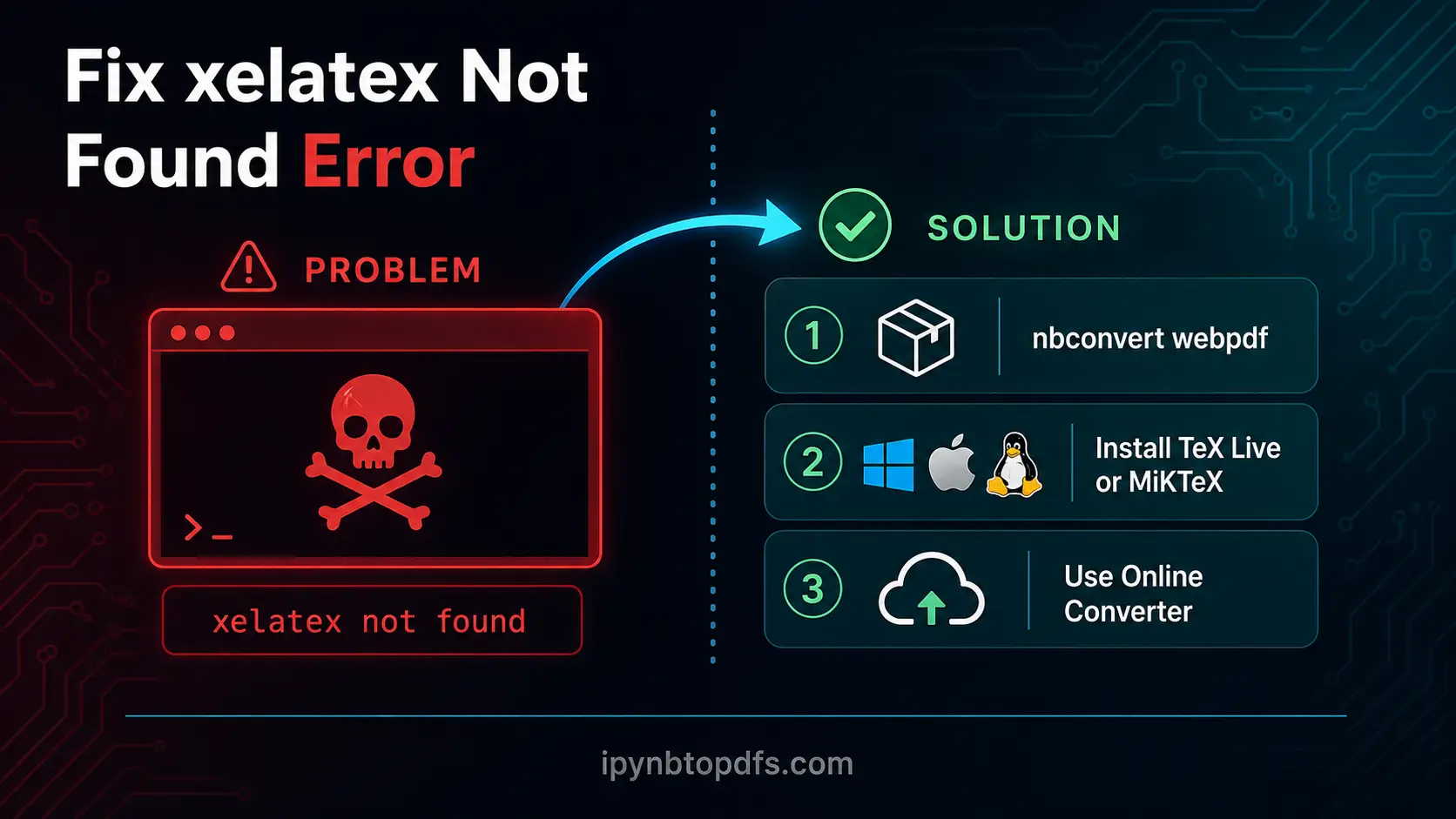
Fix nbconvert xelatex Error in Seconds
To fix the nbconvert “xelatex not found” error without installing LaTeX, run pip install “nbconvert[webpdf]” then replace –to pdf with –to webpdf in your command. Add –allow-chromium-download on the first run. Your PDF generates without any LaTeX dependency on Windows, Mac or Linux.
Conclusion
The xelatex not found error sounds serious but it has a fast fix. Switching to nbconvert webpdf skips the LaTeX dependency completely and works on any machine. If you need the full LaTeX output, install TeX Live, MiKTeX or MacTeX depending on your OS. For a zero-install solution, our free IPYNB to PDF converter handles everything on our servers without xelatex or any local setup.
FAQs - Fix Failed nbconvert xelatex Not Found on PATH
What does nbconvert failed xelatex not found on PATH mean?
It means xelatex is not installed or not in your system PATH. Switch to –to webpdf to fix it without installing LaTeX.
How do I fix xelatex not found on Windows?
Install MiKTeX from miktex.org or switch to nbconvert webpdf to skip LaTeX entirely.
How do I fix xelatex not found on Mac?
Install MacTeX from tug.org/mactex or use nbconvert webpdf as the faster no-install alternative.
How do I fix xelatex not found on Linux?
Run sudo apt-get install texlive-xetex or switch to jupyter nbconvert –to webpdf –allow-chromium-download.
Can I fix the xelatex error without installing LaTeX?
Yes. Switch to –to webpdf in your nbconvert command or use our free online IPYNB to PDF converter at ipynbtopdfs.com.
How do I fix xelatex not found in Docker?
Add RUN apt-get install -y texlive-xetex to your Dockerfile and rebuild the container.
Is nbconvert webpdf as good as the LaTeX PDF method?
Yes for most use cases. webpdf uses Chromium and produces clean PDFs with correct charts and math rendering.
What is the fastest way to fix the xelatex not found error?
Run pip install “nbconvert[webpdf]” and change –to pdf to –to webpdf. Takes under 2 minutes with no LaTeX install.